Single, Dual, or Triple Monitors? How to Choose Your Setup
Ask five people whether a second monitor improves productivity and you will get five confident answers — half of them contradicting each other. The research is actually fairly clear, and it points to a useful rule: the productivity jump from one screen to two is large, and from two to three it depends entirely on what you do. Here is how to decide, and how to mount whichever you pick.
One Monitor: When It Is Enough
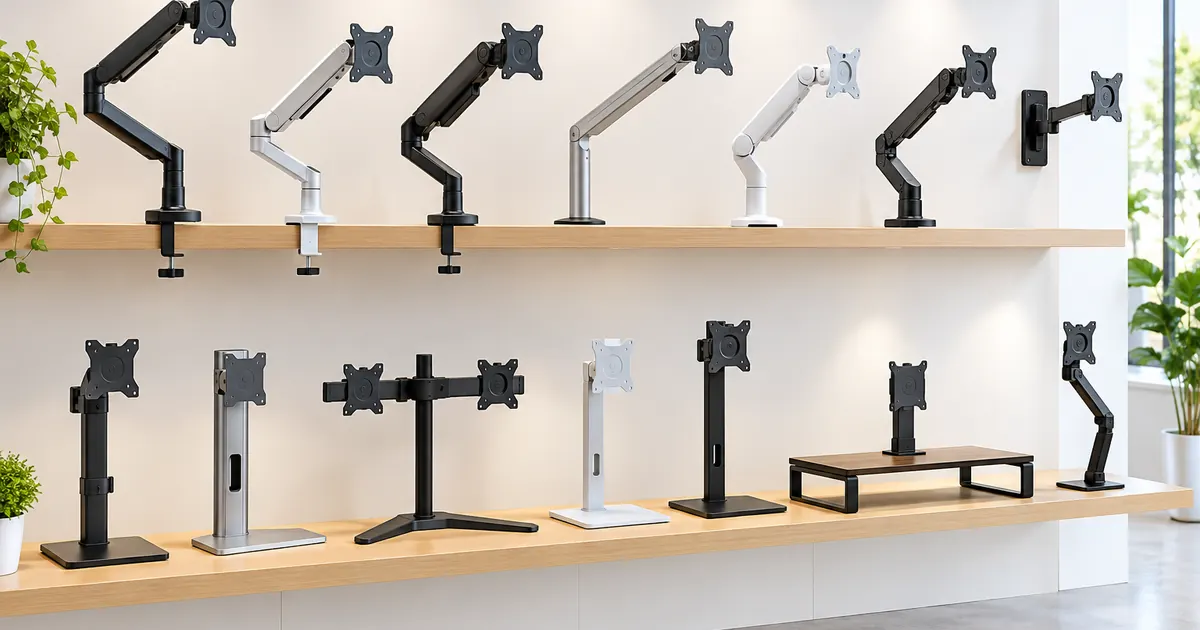
If your work is a single full-screen application — writing, coding in one repository, most customer support queues — a single well-positioned monitor is genuinely sufficient. What matters at one screen is placement: top of the screen at eye level, an arm's length away. A height-adjustable monitor stand or a single monitor arm fixes placement permanently and frees the desk space the factory stand wastes.
Two Monitors: The Biggest Productivity Win
The one-to-two upgrade is where nearly everyone gains. The reason is not screen area — it is that a second display eliminates window switching for reference material. Email on one screen, the document you are drafting on the other. Video call on one, your notes on the other. Studies of office workers consistently find double-digit time savings on tasks that involve referencing one thing while producing another, which describes most knowledge work.
For two screens, you have two mounting options. A dual monitor stand with clamp mount holds both panels from one base with independent arms — the cleanest look for matching monitors. If your screens are different sizes or you want maximum flexibility, two single arms also work; the dual gas spring arm handles both panels from a single clamp.
Three Monitors: For Specific Workflows
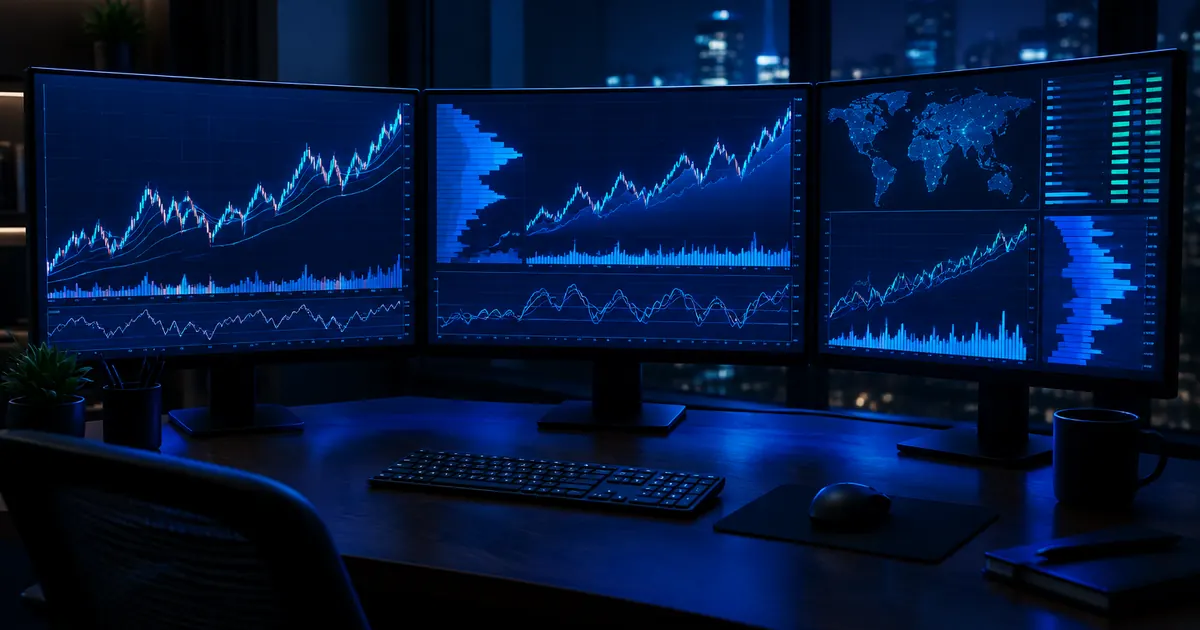
The two-to-three upgrade rewards particular kinds of work: trading and finance dashboards, live production and streaming, simulation and CAD workflows, control-room monitoring, and flight or racing simulation. For general office work, a third screen often becomes a home for Slack and email — which is to say, a distraction generator.
If your workflow is genuinely three-deep, mount the third screen properly rather than crowding it onto the desk edge. The curved array triple monitor stand wraps three 27–32 inch screens around the seating position, and the stacked triple stand builds upward instead of outward when desk width is tight.
Four or More: The Special Cases
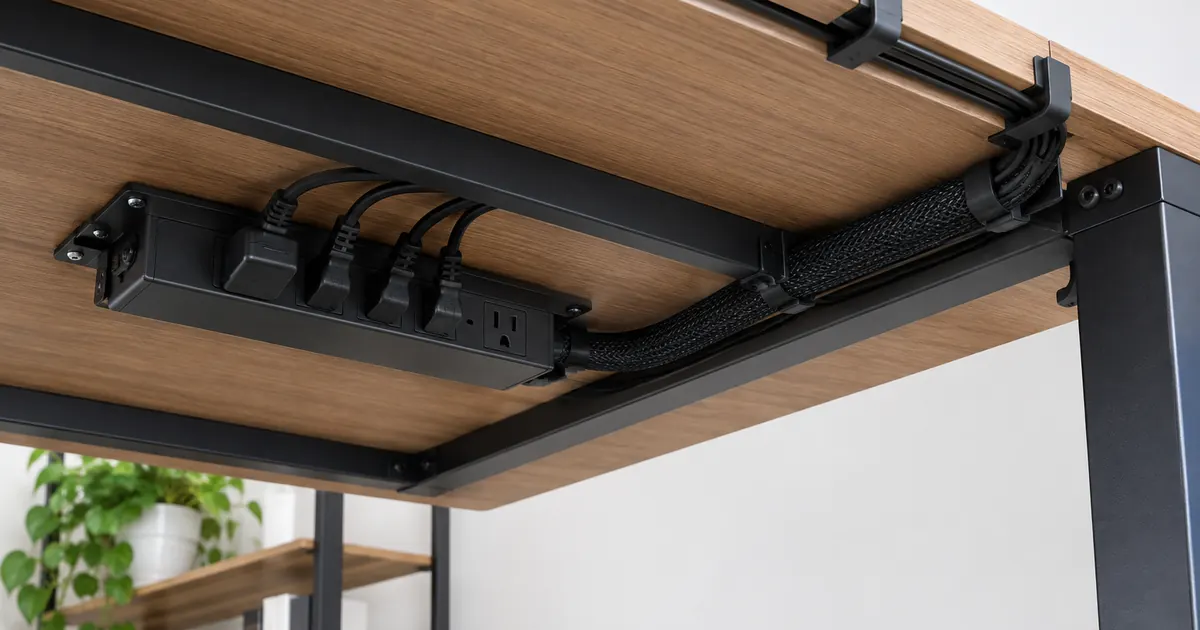
Six-screen arrays exist for a reason — trading desks, network operations, financial back offices — and they work, but they demand planning: a six monitor stand needs a sturdy desk and deliberate cable management. For most people, this is the wrong purchase. For the people who need it, it is transformative.
Desk Space and Mounting Reality
Every extra monitor on stands costs desktop real estate; every monitor on an arm gives it back. Two rules keep multi-monitor setups clean:
- One base beats two clamps. A single multi-monitor stand means one desk contact point, one cable route, one thing to bump.
- Check the weight math. A stand rated for "three monitors" assumes typical 24–27 inch panels. Ultrawide or 32-inch screens need the higher-capacity frames — check each product's rated load before ordering.
The Practical Recommendation
Start with two properly mounted screens if you have one today. Add a third only when your work has a genuine third stream of information. And mount everything on arms or stands rather than factory stands — the desk space and alignment you gain is the part of the upgrade you will notice every single day.
Ultrawide vs. Dual: The Third Option
Worth mentioning because it competes directly with a dual setup: a single 34-inch ultrawide gives you roughly the same pixels as two 24-inch 1080p screens, with no bezel in the middle. It is the better choice when your work is one continuous canvas — timelines, spreadsheets, code with a side-by-side diff. It is the worse choice when your work is two separate applications, because window management on one long panel takes more discipline than two displays with a hard edge between them. If you go ultrawide, mounting matters even more: check our guide to mounting ultrawide and heavy monitors before choosing an arm.
Portrait Monitors and Mixed Arrays
Programmers and writers often run one landscape screen with a portrait panel beside it for documents and terminals. Any of our multi-monitor stands with independent arms handles a mixed orientation — rotate the panel 90 degrees on its VESA mount and adjust the arms to different heights. Two tips keep the array clean: put the portrait screen on the non-dominant side (the eye should land on the primary screen first), and match the top edges of both screens rather than the bottoms, which keeps the sightline level when your eyes travel between them.
Browse the full multi-monitor stand collection or ask us for a recommendation based on your screen sizes and desk.