Monitor Height and Eye Strain: The Ergonomics That Matter
If you finish a workday with a stiff neck, sore shoulders, or eyes that feel like sand, the most likely culprit is not your chair or your screen — it is the angle between them. Factory monitor stands put the screen where the stand happens to reach, not where your eyes actually are. Here is the ergonomics, minus the jargon, plus the hardware that makes the correct position permanent.
The Rule: Eyes at the Top Third
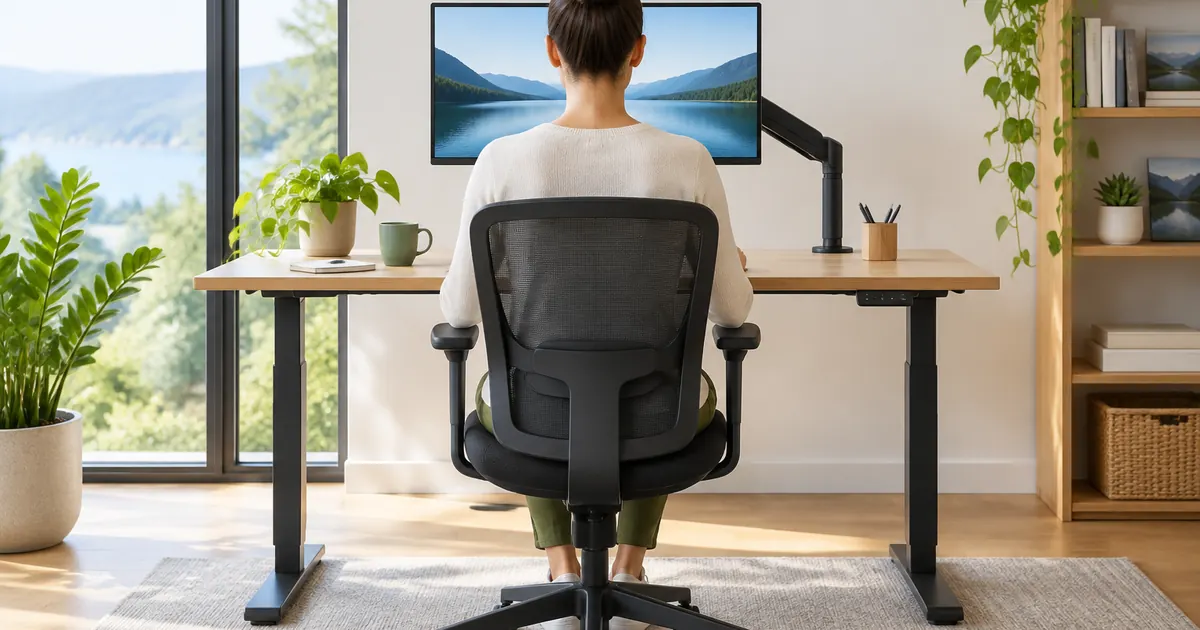
Position the screen so your eyes rest on a point about two to three inches below the top edge — the top third of the display. At that height, your natural downward gaze angle is 15 to 20 degrees, which is the angle your neck holds with the least muscular effort. Every inch the screen sits too low, your neck flexes further forward, and the load on the cervical spine climbs fast: at 45 degrees of forward tilt, your head effectively weighs close to five times more than it does upright.
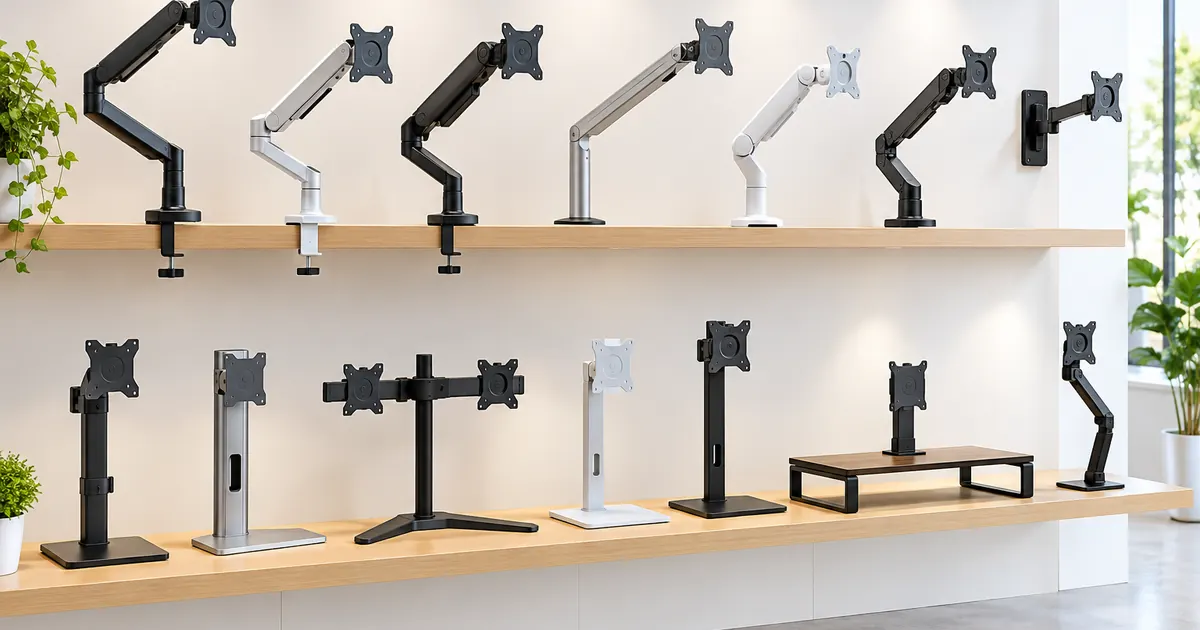
Laptop users and factory-stand users almost universally sit 3 to 5 inches below the ideal line. That is the whole ergonomic case for monitor stands and risers and monitor arms: they exist to put the screen at eye height and keep it there.
Distance: An Arm's Length, Then Fine-Tune
The screen should sit roughly 20 to 40 inches from your eyes — about an arm's length for a typical 24–27 inch display. Too close and your eyes over-accommodate; too far and you lean in to read small text. A practical test: sit back, extend your arm, and your fingertips should just about brush the screen.
Larger or ultrawide screens push the comfortable distance toward the far end of that range. If you sit closer than 30 inches to an ultrawide, you will find yourself turning your head instead of moving your eyes — a sign the screen is oversized for the distance, or that it needs to sit further back.
Tilt and the Vertical Plane
Tilt the screen back 10 to 20 degrees so the display face points at your eyes rather than straight up. This keeps the viewing angle consistent top-to-bottom and reduces the brightness gradient between the top and bottom of your visual field. Arms with full-motion pivot make this a one-touch adjustment — the clamp mount arm with adjustable tilt covers the full range.
Eye Strain Is Also About the Room
Height and distance are half the story. The other half is contrast: a bright screen in a dark room, or a window reflecting off the display, forces constant pupil adjustment. Two quick wins:
- Match screen brightness to the room. A white background should look like a sheet of paper under the room's lighting, not like a lamp.
- Perpendicular to windows. Position the screen so windows sit to the side, not behind you or in front of you.
And the 20-20-20 rule earns its reputation: every 20 minutes, look at something 20 feet away for 20 seconds. Blink rate drops by half during screen focus — the breaks restore it.
Standing Desks Change the Math
Alternate sitting and standing and you have two correct screen heights, not one. This is the strongest case for a gas spring monitor arm: the screen glides between the two positions with one finger, so the ergonomic setup survives the transition instead of being abandoned at it.
The Ten-Minute Fix
Right now, without buying anything: raise your screen on a stand of books so the top edge sits at eye height, pull it to arm's length, and tilt it back slightly. Feel the difference in your neck within an hour. Then make it permanent with hardware that holds the position — a riser for a single screen, an arm for anything you adjust, a multi-monitor stand for arrays.
Multi-Monitor Ergonomics: The Primary Screen Rule
With two or three screens, one panel is primary — the one your eyes default to. Ergonomic guidance is consistent: the primary screen sits directly in front of you at the eye-height rule above, and secondary screens angle in toward it, close enough that a glance (not a head turn) reaches them. The most common multi-screen mistake is treating all screens equally: a symmetric array looks tidy in photos but forces constant head rotation to reach the screen where work actually happens. If you run a multi-monitor stand, set the primary position first and build the array around it.
Laptop Screens Count — Sometimes
A laptop beside a monitor is technically a dual setup, and the same rules apply with one exception: the laptop screen cannot be raised to eye level without a riser or stand, and typing on its built-in keyboard at that height is its own ergonomic problem. The practical hierarchy: external monitor at eye level as primary, laptop on a riser beside it for reference, external keyboard and mouse on the desk. If the laptop must stay flat on the desk, use it for secondary glances only — email status, chat, timers — and keep real work on the raised screen.
Your neck does the same work every day. Give it a screen that meets it at eye level, and most of that end-of-day stiffness simply stops showing up.